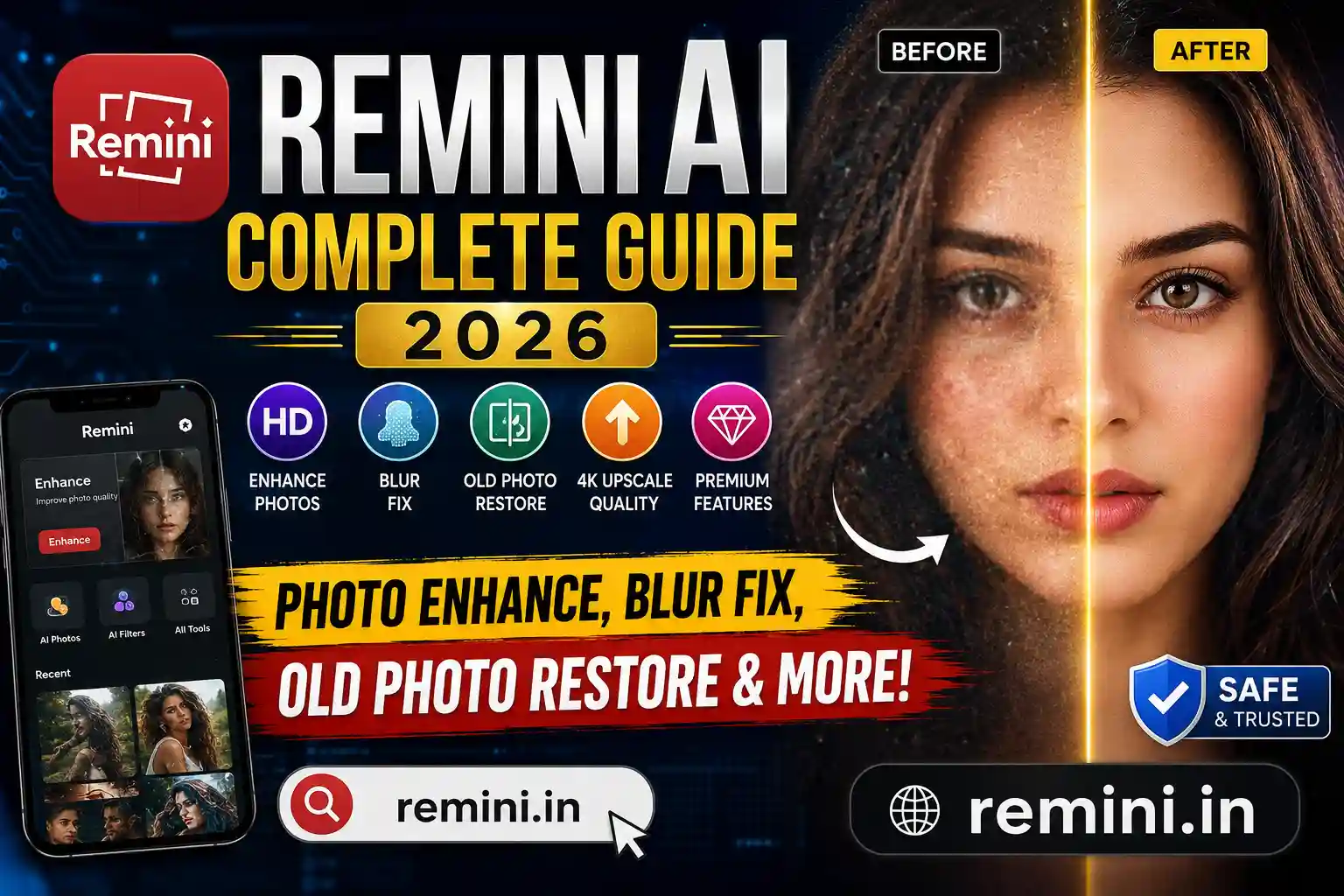

Many users search for the best Remini blurry fix methods because blurry photos are still a common problem in 2026. Sometimes old photos, WhatsApp images, screenshots, or low-quality camera pictures lose sharpness and look unclear. Thankfully, the Remini app uses advanced AI technology to improve photo quality and restore details automatically.
Whether your image is slightly blurry or extremely low quality, this guide explains how to fix blurry photos in Remini step by step.
Read also: What Is Remini App
Why Photos Become Blurry
Before using the Remini blurry fix process, it is important to understand why photos become blurry in the first place.
Common reasons include:
- Camera shake while taking photos
- Low lighting conditions
- Old damaged images
- Screenshot compression
- WhatsApp image quality reduction
- Social media uploads
- Zoomed-in photos losing details
In many cases, normal editing apps cannot recover lost details properly. That is where AI enhancement tools become useful.
How Remini Blurry Fix Works
The Remini app uses artificial intelligence to analyze faces, textures, and photo details. It rebuilds missing pixels and sharpens blurry areas automatically.
The AI system can improve:
- Facial details
- Eye sharpness
- Skin texture
- Hair clarity
- Background quality
- Old photo restoration
This is why Remini became one of the most popular AI photo enhancer apps in recent years.
Steps for Remini Blurry Fix in 2026
Follow these steps carefully to make blurry photos clear.
Step 1: Install the App
Download the latest version of the Remini app from the official app store.
Make sure you use the updated 2026 version because newer AI models provide better image enhancement.
Step 2: Open the Photo Enhancer Tool
Inside the app dashboard, select:
- Enhance
- AI Photo Enhancer
- Unblur Photo
Different versions may show slightly different names.
Step 3: Upload the Blurry Image
Choose the blurry image from your gallery.
For best results:
- Use original photos
- Avoid heavily compressed screenshots
- Use high-resolution images when possible
Step 4: Start AI Enhancement
Tap the Enhance button.
The AI system will process the image and automatically apply the Remini blurry fix.
Usually, processing takes:
- 5–20 seconds for normal photos
- Longer for very damaged images
Step 5: Save the HD Image
After enhancement:
- Compare before and after results
- Download the HD version
- Save the image in full quality
Most users notice a major improvement immediately.
Best Settings for Better Results
Sometimes users say the Remini blurry fix does not work perfectly. In reality, proper settings matter a lot.
Use Bright Images
Dark photos are harder to restore.
Avoid Extreme Blur
If a photo is completely destroyed, AI cannot recreate every detail accurately.
Use Face-Centered Photos
Remini works best on:
- selfies
- portraits
- face images
Update the App
Older versions may have bugs or weaker AI models.
Read also: Remini App Not Working Fix
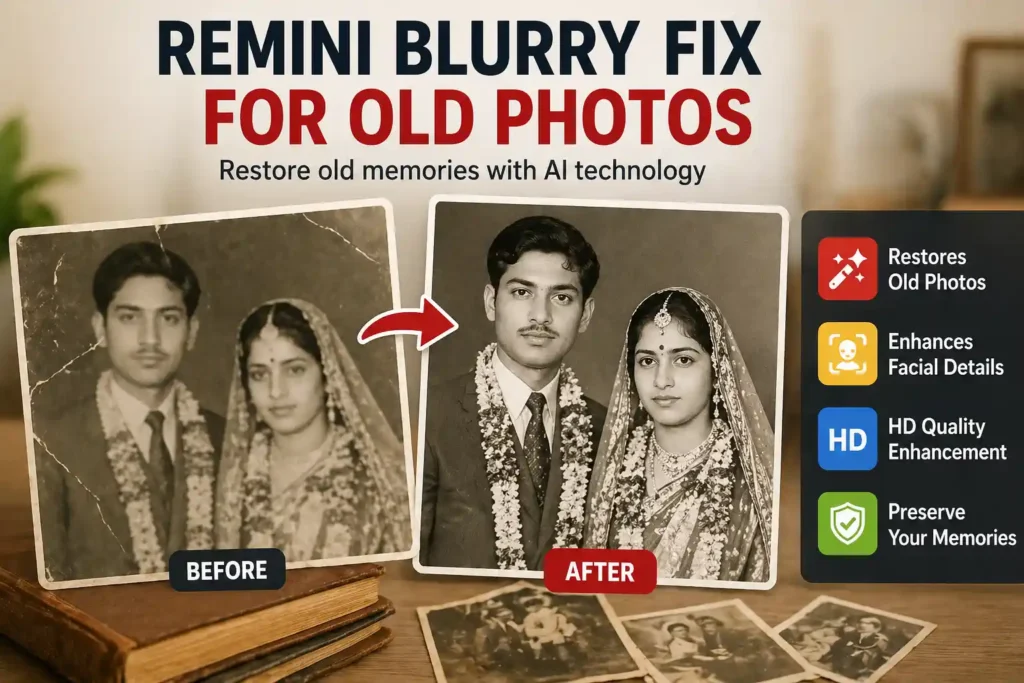
Remini Blurry Fix for Old Photos
One of the biggest uses of Remini is restoring old family photos.
Users often scan:
- wedding albums
- childhood photos
- damaged prints
- black-and-white images
The AI enhancement tool can restore facial details surprisingly well.
Many people use it to preserve family memories digitally.
Remini Blurry Fix on Android and iPhone
The app works smoothly on both platforms.
Android
- Works on most modern Android phones
- Better results on devices with strong processors
iPhone
- Faster AI rendering
- Stable performance
- Better export speed in some cases
In 2026, both versions support advanced AI enhancement features.
Common Problems During Remini Blurry Fix
Sometimes users face issues while enhancing photos.
App Crashing
- Clear cache
- Restart device
- Update app
Export Failed
- Check storage space
- Use stable internet
- Try again later
Low Quality Output
- Use better original images
- Avoid screenshots
- Enable HD export
Best Alternatives to Remini
Although Remini is popular, some users also try:
- Lightroom AI
- Snapseed
- PicsArt AI
- Canva AI tools
- Fotor AI enhancer
Still, Remini remains one of the easiest AI photo enhancer apps for beginners.
Read also: Best AI Photo Enhancer
Is Remini Blurry Fix Free?
The app offers both:
- free version
- premium version
Free users may see:
- ads
- limited exports
- lower daily usage
Premium users get:
- faster processing
- HD exports
- watermark-free images
- unlimited enhancement
Tips to Avoid Blurry Photos
Instead of fixing blur later, follow these tips:
- Hold the camera steady
- Use good lighting
- Clean the camera lens
- Avoid digital zoom
- Use high camera resolution
- Focus properly before clicking
These small habits improve photo quality significantly.
Final Verdict
The Remini blurry fix method is one of the easiest ways to convert blurry images into sharp HD photos in 2026. Whether you want to restore old memories, improve selfies, or sharpen low-quality images, the Remini app provides fast and impressive results.
For best output:
- use original images
- keep the app updated
- export in HD quality
With proper usage, even old blurry photos can look surprisingly clear again.
Read also: Low Quality Image to HD
FAQs
The best method is using the AI Photo Enhancer tool with a high-quality original image and HD export enabled.
Remini can improve many blurry photos, but completely damaged images may still have limited restoration.
Yes, Remini offers a free version, but some features require a premium subscription.
Yes, many users use Remini to restore old family and childhood photos.
The original image quality may be too low, or the image may be heavily compressed.
Read Also:India PIN Code Finder
Read Also:India Lpg Update